
Be seen wherever you point.
A free Mac menu bar app that makes your pointer easy to follow while you share your screen or present. Find it, point with it, draw with it.
Version 0.1.0. macOS 14.6 or later, Apple silicon and Intel. Free, open source, MIT.
This page is a small web version of it. Try it with your mouse.What it does on your Mac:
- Shake. Shake the mouse and a highlight finds your cursor. Not tried yet.
- Hold. Press and hold, then move: a laser trail follows. Not tried yet.
- Drag. Click and drag to draw. Circle a word and it snaps clean. Not tried yet.
That is all of it. On your own screen it works over every app.
A pointer people can follow.
When you share a screen, your cursor is a small arrow that video compression washes out. Cursorlight sits on top of every app and gives you the tools presenters carry in their heads: find, point, draw.
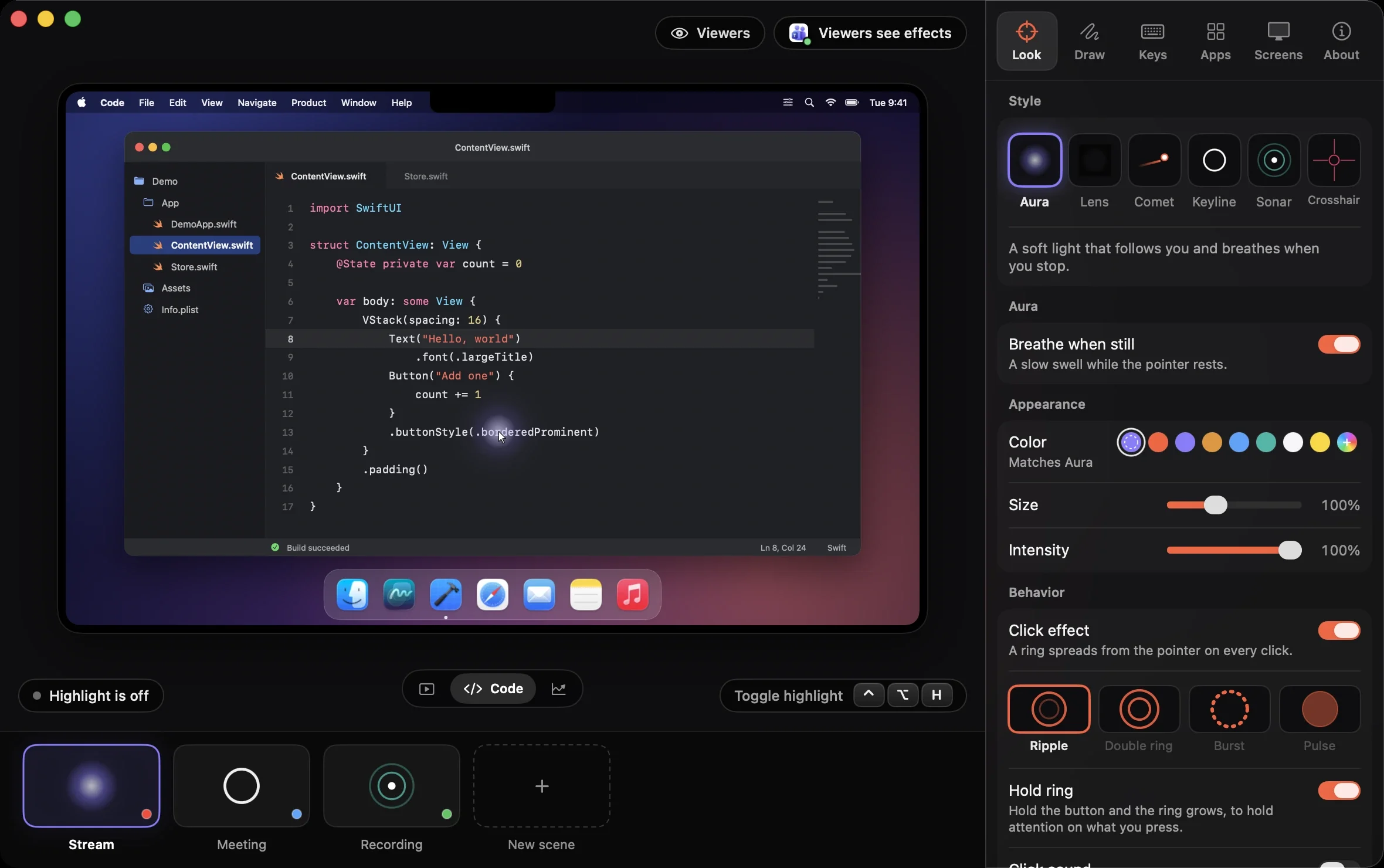
- Find
- Shake the mouse and a highlight finds your cursor, wherever it is. Six styles (Aura, Lens, Comet, Keyline, Sonar, Crosshair) in any color and size, and click ripples so people see where you press.
- ControlOptionH
- Point
- A laser with a trail that fades behind it. Hold the shortcut, move, let go. It reads on a call where a plain arrow does not.
- ControlOptionL
- Draw
- Ink that fades by itself. Draw a rough circle and it becomes a clean one. Five pens, arrows, boxes, text, number stamps, a whiteboard and a blackboard, and an eraser.
- ControlOptionI
- Spotlight
- Light one region of the screen and dim the rest. Clicks still reach what is inside the light.
- ControlOptionS
- Present
- A presenter timer, a keystroke display and click ripples. A floating toolbar holds the tools, and it can hide itself from screen shares. One key pauses everything.
- ControlOptionP
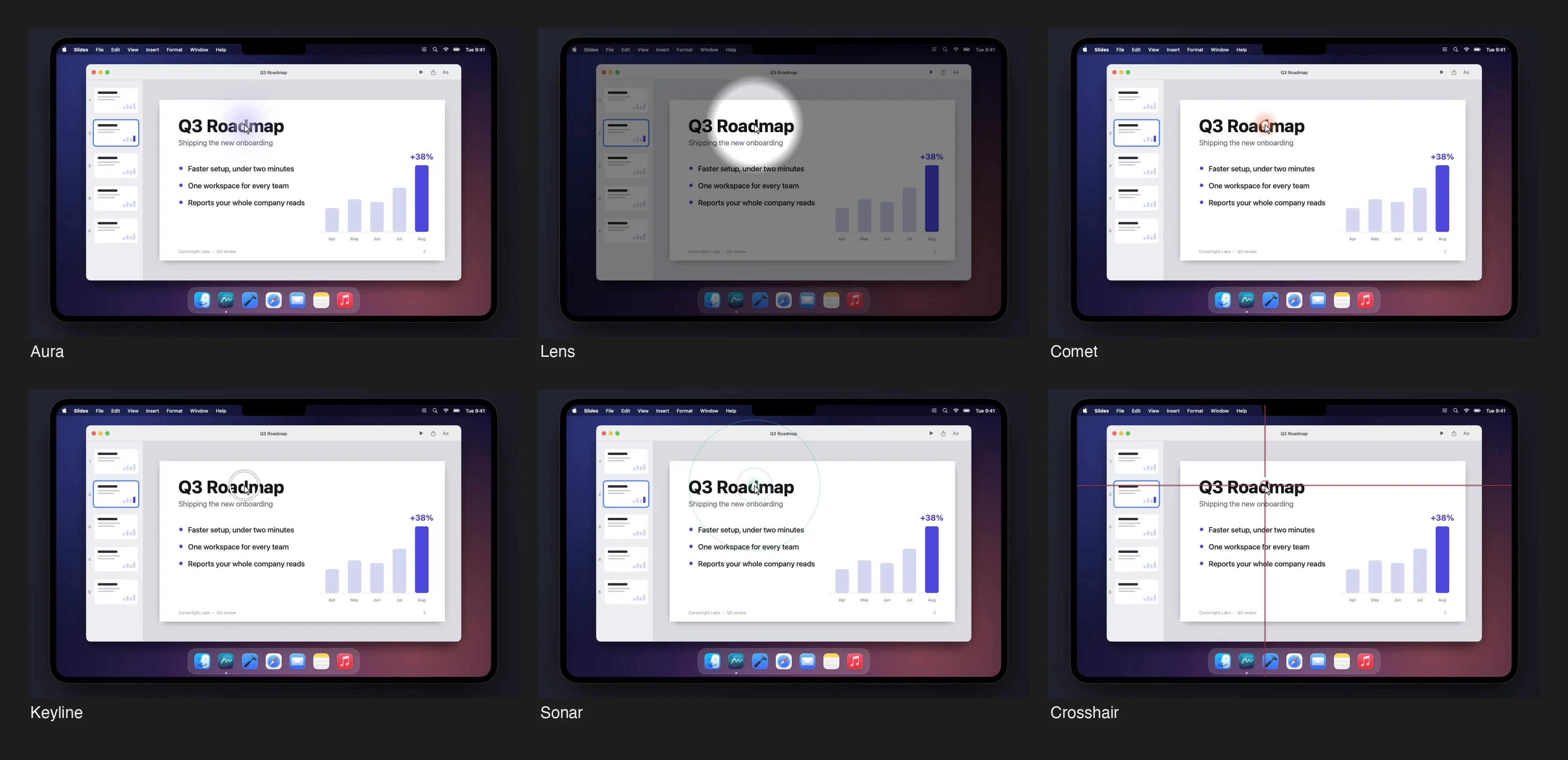
Six highlight styles on the same slide: Aura, Lens, Comet, Keyline, Sonar and Crosshair.
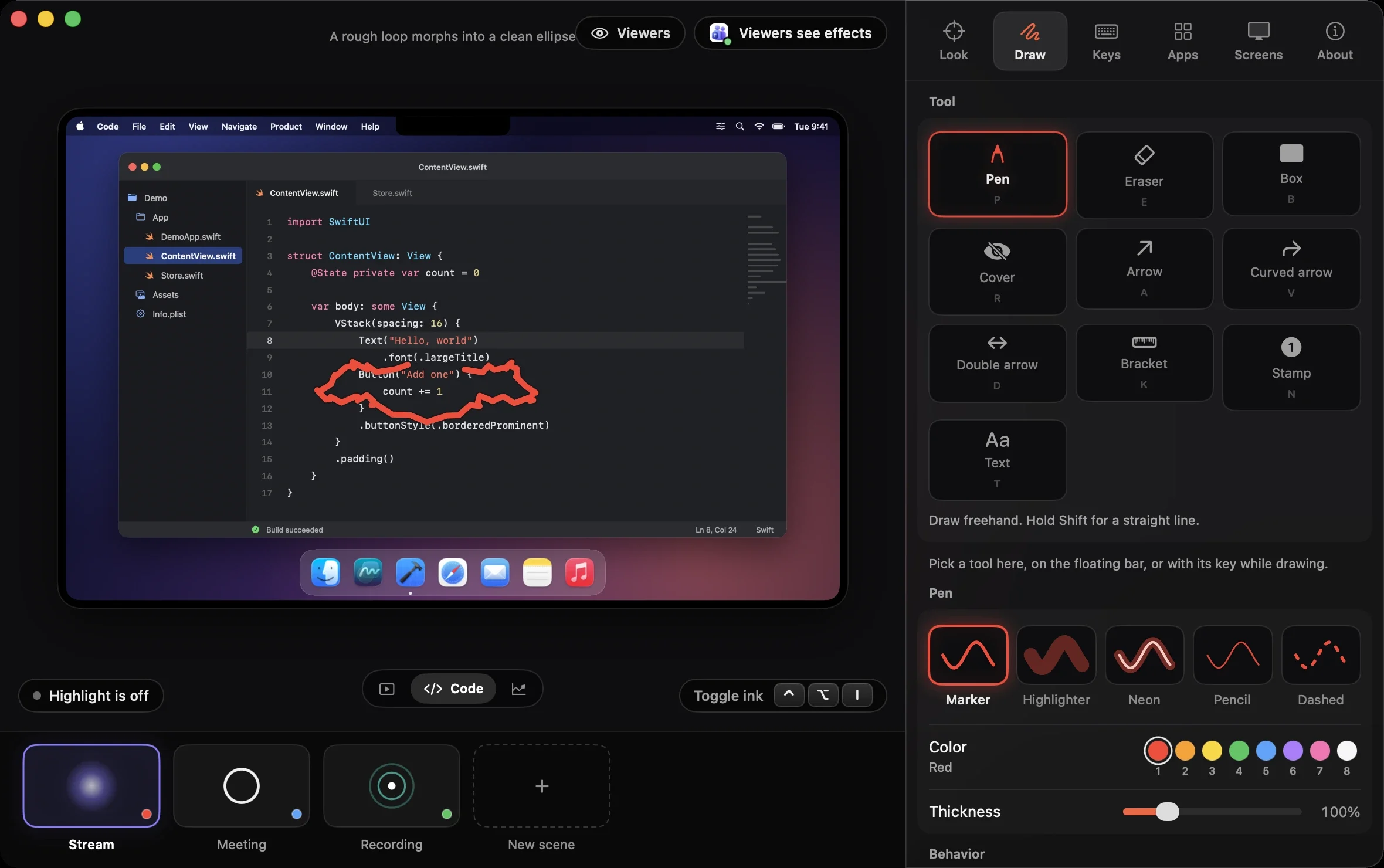
Hold Shift while you draw for a straight line. A rough loop around a line of code snaps into a clean ellipse.
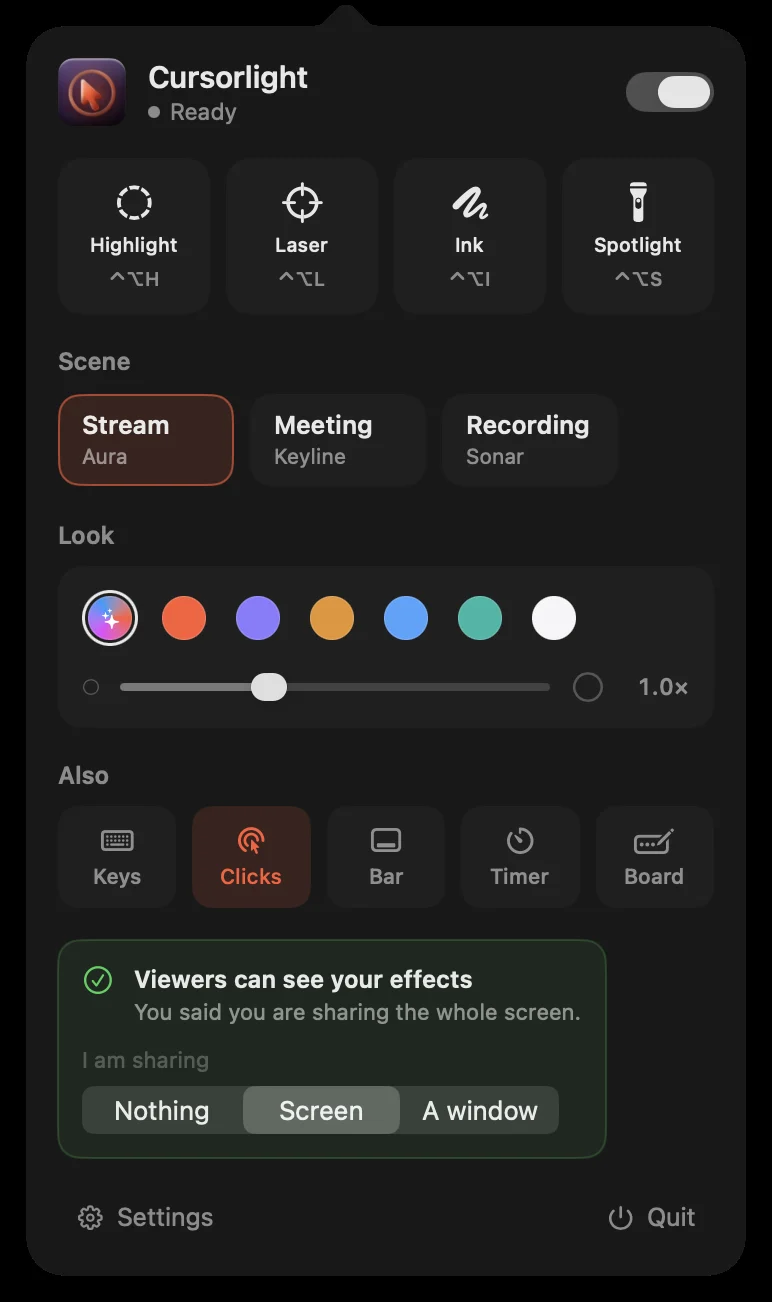
Scenes, color and size from the menu bar. No Dock icon, no window in the way.
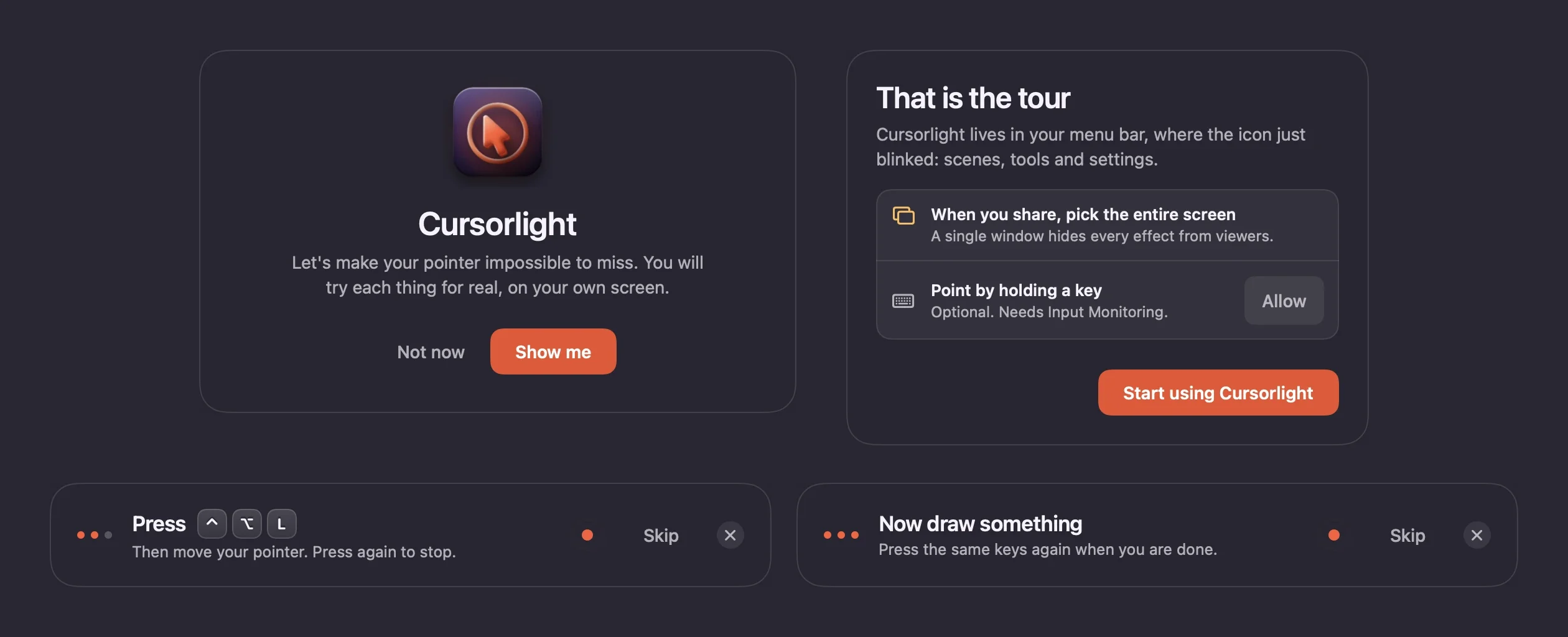
The first launch is a guide that makes you try the shake, the laser and the ink for real before it lets go.
One look for every situation.
A scene is a saved look: the highlight, laser and ink, their colors and sizes, and the pointer skin. Make one for a stream, one for a meeting, one for a recording, or one of your own.
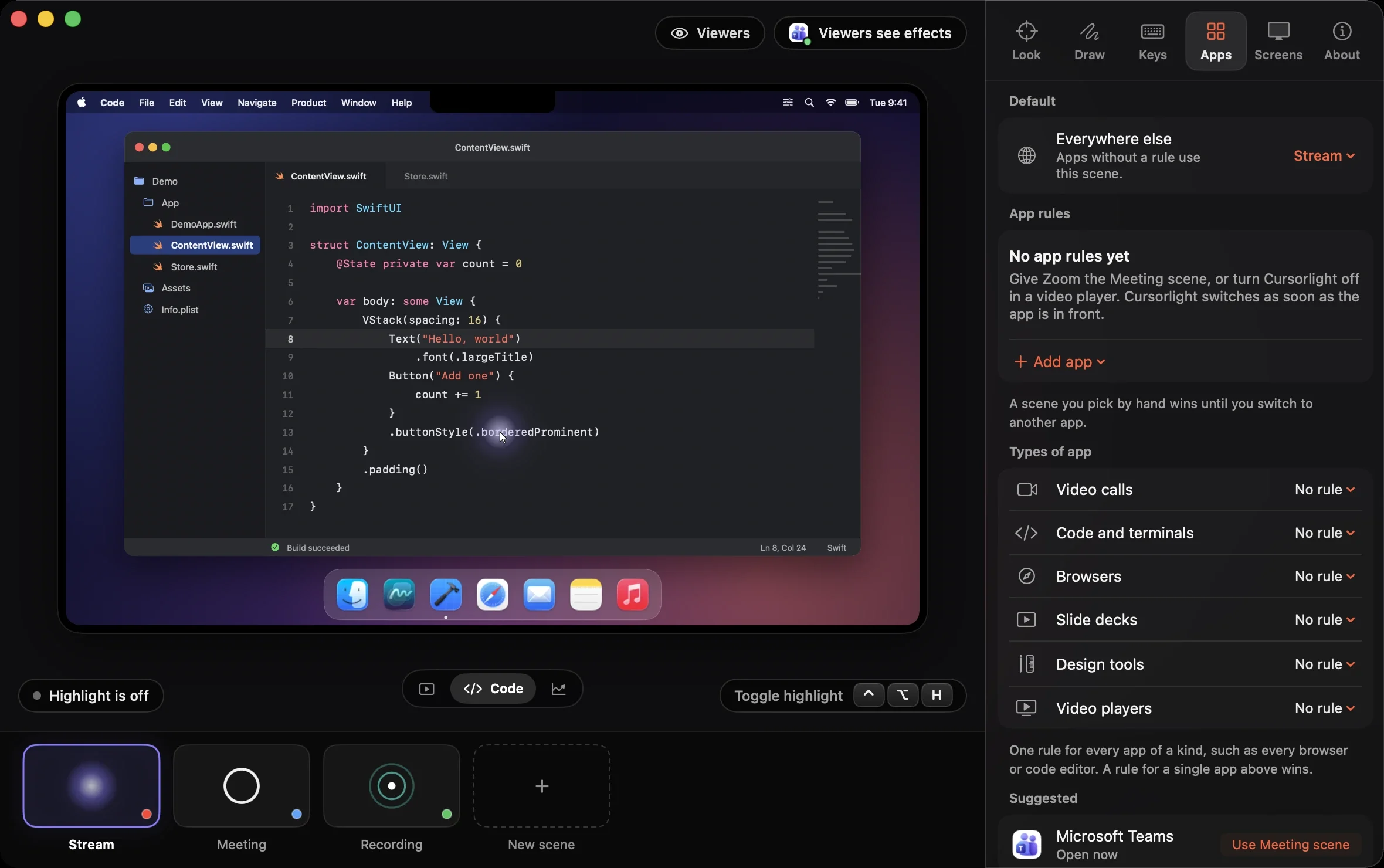
Rules by app category, and the scene strip: Stream, Meeting, Recording and a slot for your own.
Stream
Big and bright, so a small video tile still shows where you are.
Meeting
Quiet. A light highlight and a laser when you need one.
Recording
Click ripples and ink on, so a viewer later can follow every step.
Cursorlight switches by itself.
Pick a scene for an app, or for a whole category such as calls, slides, code or video. When that app comes to the front, its scene is on. A shortcut steps to the next scene by hand. Scenes can be reordered, duplicated, renamed, exported and imported, and there are presets to start from: Teaching, Webinar, Tutorial, Pairing and High visibility.
Or swap the pointer itself.
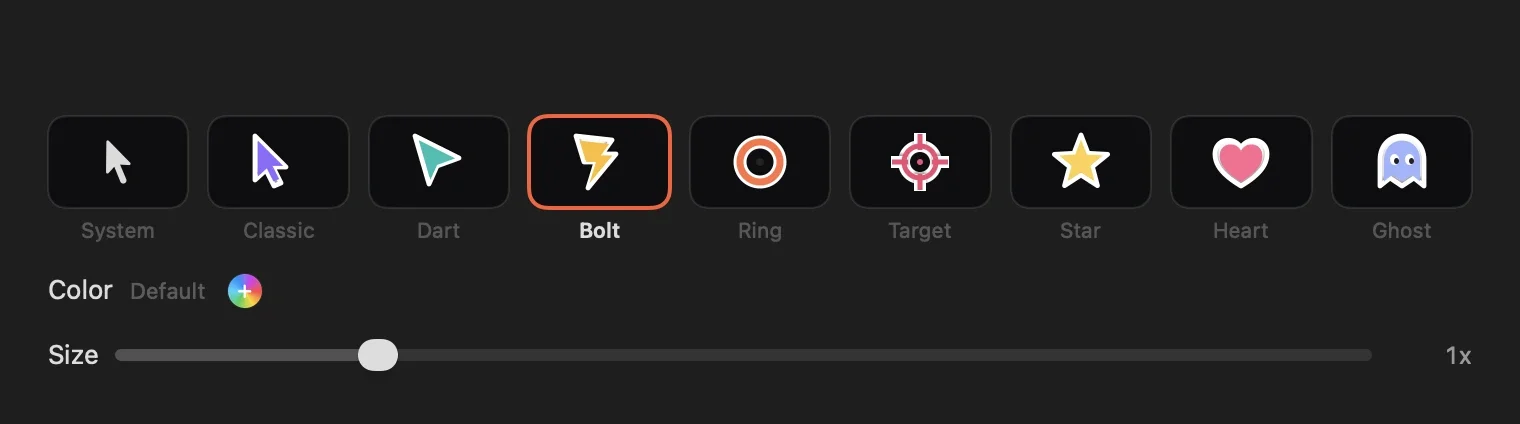
Each scene can replace the real pointer with a skin, in its own color and size.
- Classic
- Dart
- Bolt
- Ring
- Target
- Star
- Heart
- Ghost
What viewers actually see.
Cursorlight draws its effects on your display, on top of your apps. So viewers see them when you share the whole screen, and they do not when you share a single window. That is how macOS captures a window, and no setting in the app can change it.
Whole screen: every effect reaches viewers.
So the app tells you before you start.
The share-safe check asks what you are sharing and warns you when viewers will not see your effects. It is a reminder, not a detector: you tell Cursorlight, and it keeps you from drawing circles nobody can see. The floating toolbar can also hide itself from the share, so it is yours alone.
If viewers need to see the pointer, share the screen, not a window.
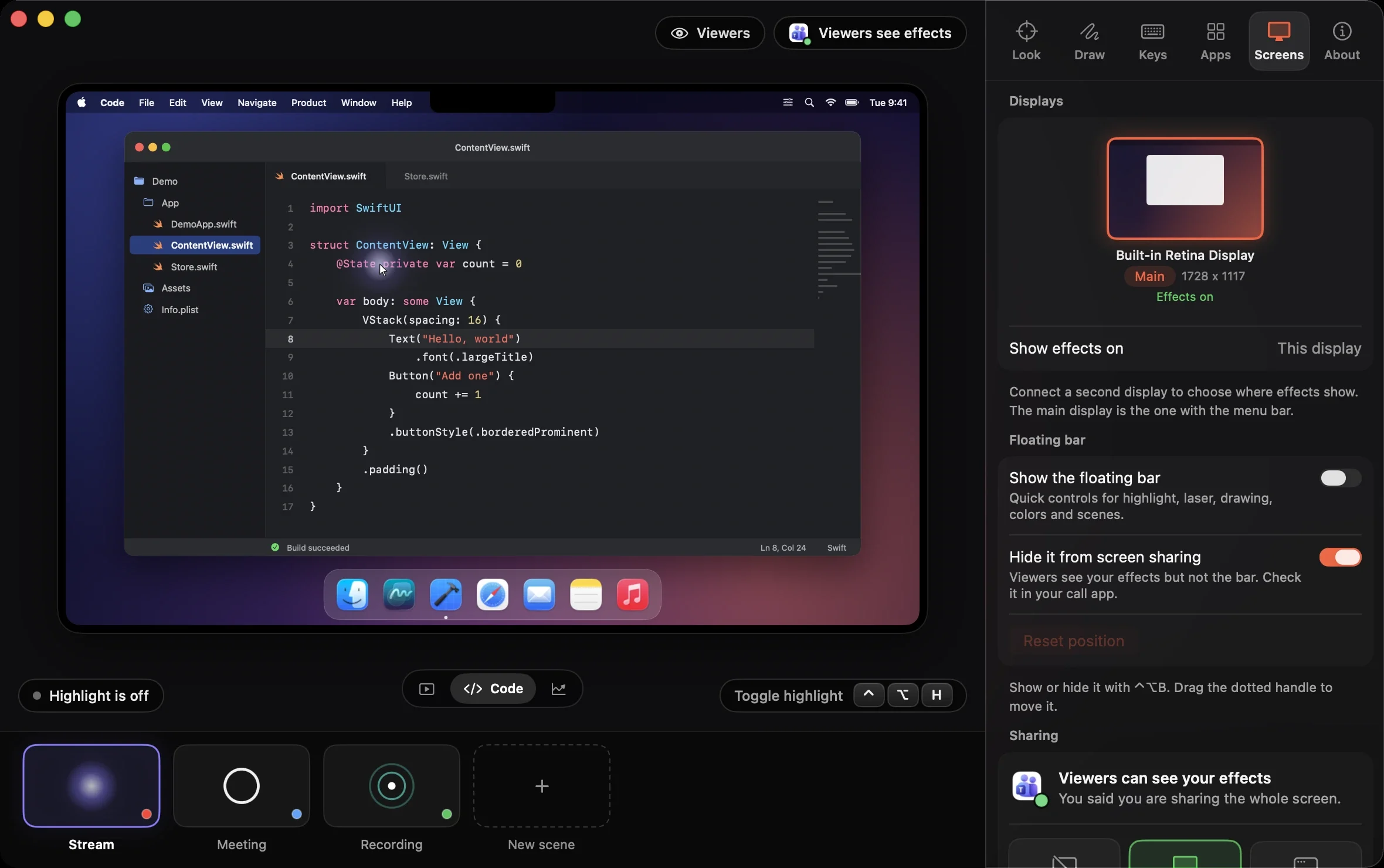
In the app: pick the display, and the reminder tells you whether viewers can see your effects.
Run it from anywhere.
Every tool and scene has a cursorlight:// link. Put one on a Stream Deck key, in a Raycast or Alfred command, in the Shortcuts app, or send it from Terminal. Links only switch Cursorlight's own effects; nothing is read back.
- Toggle the highlight
cursorlight://highlight/toggle - Switch to a scene
cursorlight://scene?name=Meeting - Start a 10 minute timer
cursorlight://timer/start?minutes=10 - Draw on a whiteboard
cursorlight://whiteboard/white - Clear the drawings
cursorlight://clear
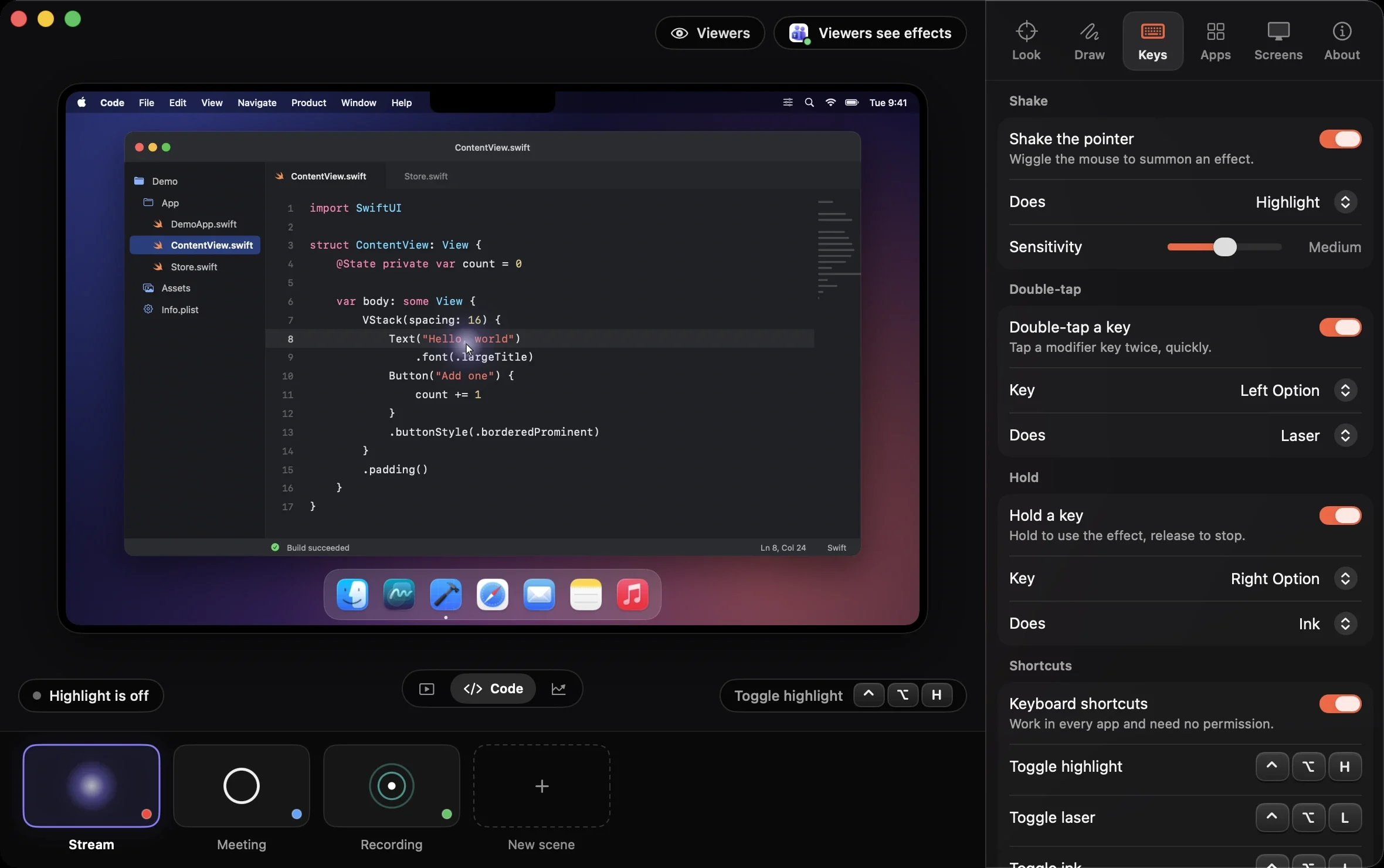
Triggers and global shortcuts are rebindable, with conflict checks.
Free. Download, drag, open.
Version 0.1.0. macOS 14.6 or later. Apple silicon and Intel.
Drag it to Applications.
Open the disk image and drag Cursorlight onto the Applications folder.
Confirm the first launch.
Cursorlight is not notarized yet, because there is no Apple Developer account behind it. macOS will refuse the first launch and say it cannot verify the app. That message is about the missing notarization, not a finding about the app. You confirm once.
macOS 15 or later
- Open Cursorlight from Applications. When the warning appears, click Done. Do not choose Move to Trash.
- Open System Settings, then Privacy & Security, and scroll to Security.
- Click Open Anyway next to Cursorlight, confirm with your password or Touch ID, then click Open.
macOS 14
- Control-click Cursorlight in Applications and choose Open.
- Click Open in the dialog.
Or, if you trust the source, remove the quarantine flag in Terminal:
xattr -dr com.apple.quarantine /Applications/Cursorlight.appTry it for real.
A short welcome makes you shake the mouse, use the laser and draw ink before it finishes. No permission is needed for any of that.
Checksums, building from source, updating and uninstalling are in theinstall guide. Updates are optional: turn on the check in Settings, About.
A pointer tool has no business knowing anything about you. It does not.
- Accessibility
- Not used.
- Screen Recording
- Not needed. Cursorlight draws on your screen, it never reads it.
- Input Monitoring
- Optional. Only for the keystroke display, hold-a-key triggers, the key sound and hide-while-typing. Everything else works without it.
- Password fields
- Never seen. The system withholds those keys.
- Network
- Nothing, except an update check you can leave off.
- Accounts and analytics
- None.
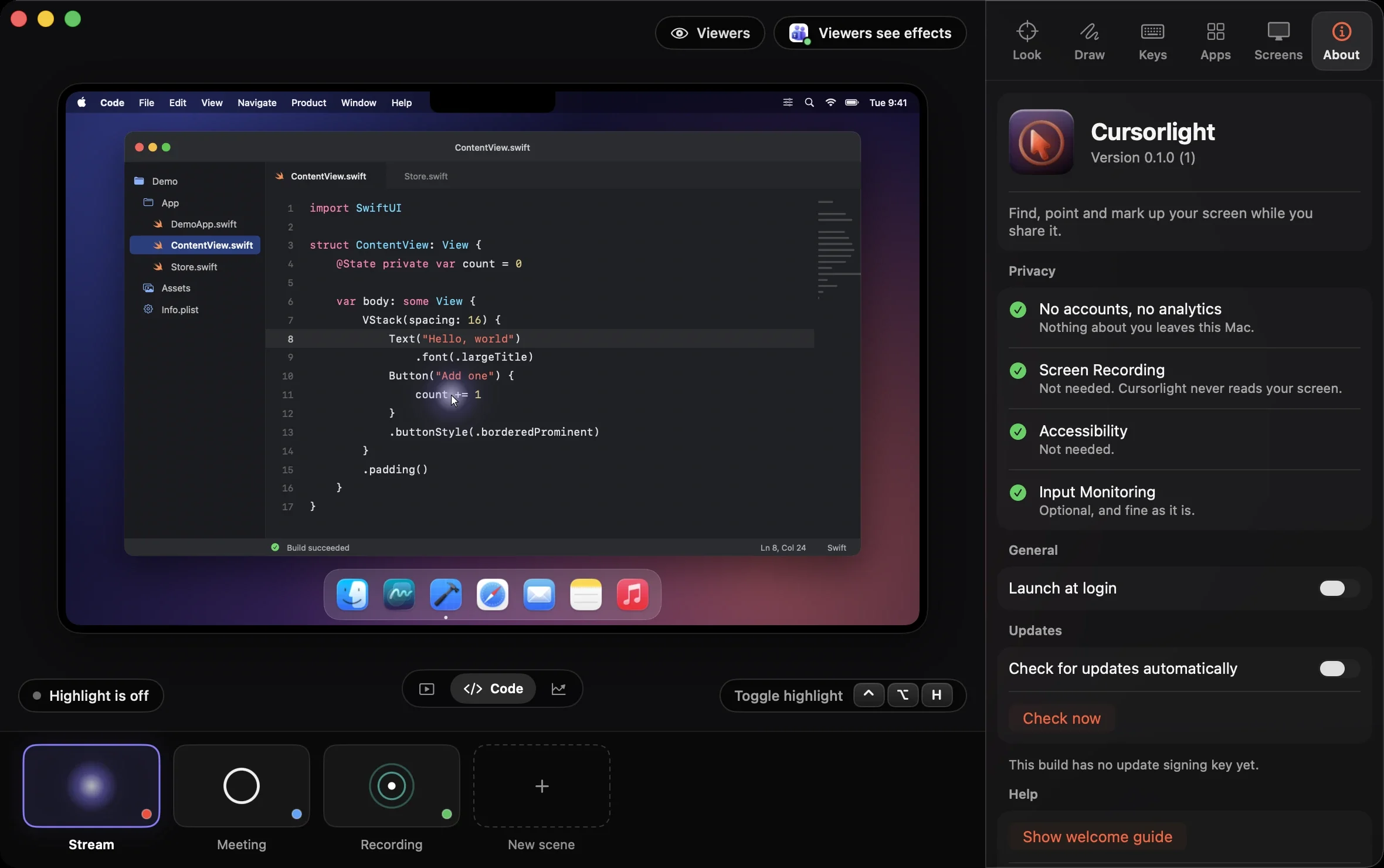
The app's own About page says the same.
This website has no analytics, no cookies and loads nothing from other domains.
Questions.
Why can viewers not see my highlight when I share one window?
Cursorlight draws on your display, on top of your apps. When you share the whole screen, the display is what viewers get, so they see it. When you share a single window, macOS sends only that window, and nothing drawn on top of it is included. In our own capture test, whole-display capture showed an overlay and single-window capture did not. We have not tested every conferencing app, so check yours with the share-safe reminder in the app.
Does it need Screen Recording or Accessibility?
No. Cursorlight does not use Accessibility and does not record your screen, so it never asks for either. The only permission it can ask for is Input Monitoring, and only if you turn on a feature that listens to the keyboard.
What is Input Monitoring for?
It is optional. It powers the keystroke display, triggers that need you to double-tap and hold a key, the key sound and hiding while you type. Shake, the shortcuts, the laser, ink and spotlight work without it. Password fields are never seen: the system withholds those keys.
Why does macOS say it cannot verify Cursorlight?
This build is not notarized yet, because there is no Apple Developer account behind the project. macOS blocks the first launch of any such app until you confirm it once. The install steps above show how, on macOS 15 and later and on macOS 14. The source is public, so you can read it or build it yourself.
Which Macs does it run on?
macOS 14.6 or later, on Apple silicon and Intel. It is a universal app.
Does it replace my real cursor?
Only if you choose a pointer skin, and it goes back to normal when Cursorlight is paused or quits. By default the effects are drawn around your normal pointer. Cursorlight can also change the system cursor size, and it puts it back when you quit and after a crash.
Can I control it from a Stream Deck, Raycast or Shortcuts?
Yes. Turn on cursorlight:// links in settings, then use a link such as cursorlight://scene?name=Meeting from Stream Deck, Raycast, Alfred, the Shortcuts app (Open URLs) or Terminal. Links only switch Cursorlight's own effects, and nothing is read back.
Is it free? What is the catch?
It is free and open source under the MIT licence, with no account, no licence key and no analytics. The name, icon and artwork are not covered by the licence. The code is at https://github.com/Zawalid/Cursorlight.
Does it phone home?
No. The only network call it can make is an update check, and that is optional. There is no analytics and no account. This website has no analytics and no cookies either.
Read it. Build it. Fix it.
Cursorlight is open source under the MIT licence. The two places that use private macOS API, the system cursor size and the pointer skins, sit behind a protocol with a public fallback, in one folder.